



























How To Fix Common Errors During Icam Photogrammetry Capture
Discover effective solutions to common errors encountered during Icam photogrammetry capture. Enhance your workflow and achieve accurate results with ease.

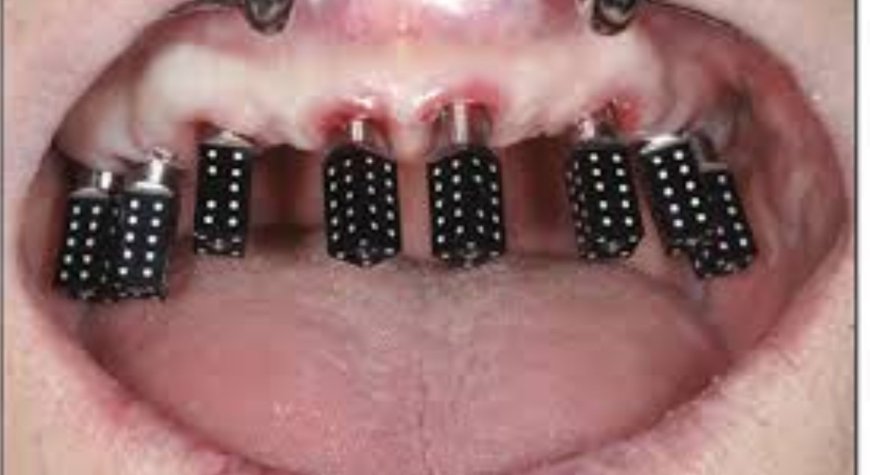
Full arch dental photogrammetry is transforming the way clinicians approach complex implant restorations and edentulous cases. iCAM, one of the leading systems in this field, enables accurate capture of implant positions using a non-invasive, radiation-free process. However, even with advanced technology, capturing accurate data requires precise technique and attention to detail. Mistakes during the capture phase can compromise the final outcome, leading to ill-fitting prosthetics, remakes, and increased chair time.
To ensure successful scans and seamless workflows, heres a guide on how to identify and fix common errors during iCAM full arch dental photogrammetry capture.
1. Scan Body Not Fully Seated
Improperly seated scan bodies are one of the most common sources of inaccuracy in full arch scans. A partially seated or angled scan body can skew the spatial relationship captured by the cameras, leading to incorrect prosthetic design.
Fix:
-
Visually confirm full seating of each scan body before capture.
-
Use a torque driver if the system requires specific torque (typically 1535 Ncm).
-
Check for tissue impingement or debris in the implant connection before placing the scan body.
-
Reseat and retighten any scan body that appears misaligned or loose.
2. Poor Lighting or Reflections
Problem:
Excessive glare, shadows, or inconsistent lighting during scanning can cause the iCAM cameras to miss details or produce distorted 3D data, especially around shiny or reflective scan bodies.
Fix:
-
Use diffused lighting and avoid overhead surgical lights or natural sunlight in the scanning area.
-
Dry the scan bodies thoroughly using air or gauze to remove saliva or moisture.
-
Consider matte-finished scan bodies or apply an anti-reflective spray approved for dental use if lighting remains an issue.
3. Camera Misalignment or Calibration Errors
Problem:
If the iCAM system is not properly calibrated or the cameras are incorrectly aligned, the final data set may not accurately reflect the true position of the implants.
Fix:
-
Calibrate the iCAM system before every session, especially if it has been moved or stored.
-
Ensure the tripod is level and stable.
-
Follow the manufacturer's calibration routine precisely, including correct placement of calibration markers.
-
Recalibrate immediately if data inconsistencies or alignment errors occur.
4. Insufficient Number of Images or Incomplete Capture Sequence
Problem:
Skipping steps in the capture sequence or failing to capture enough angles leads to missing or corrupted data. This is especially critical in full arch dental photogrammetry, where large spans need full 3D coverage for accuracy.
Fix:
-
Follow the recommended capture protocol, typically 1012 images from specific angles.
-
Include top-down, frontal, and lateral views for full coverage.
-
If youre unsure about data completeness, take extra images. Redundancy helps the software build a more accurate 3D model.
5. Software Flags a Low Confidence Score or Error
Problem:
During processing, the software might highlight certain scan bodies as low confidence or flag misalignments. Ignoring these alerts can result in prosthetic misfit or implant-level distortion.
Fix:
-
Do not ignore software warnings. Investigate the flagged scan body or area.
-
Re-capture additional images focusing on that specific region.
-
Review each scan body visually in the model to ensure it's clearly represented and aligned correctly.
-
If necessary, re-seat the scan body and repeat the full scan.
6. Patient Movement During Capture
Problem:
Even slight movement from the patient during the image capture sequence can cause blur or misalignment, leading to inaccurate 3D reconstruction.
Fix:
-
Instruct the patient to remain completely still during the process (typically 6090 seconds).
-
Use chin supports or stabilization tools if necessary.
-
If movement is suspected, restart the scan rather than trying to salvage partial data.
7. Wrong or Incompatible Scan Components
Problem:
Using scan bodies or abutments not recognized by the iCAM software can cause detection failures or misregistration of implant positions.
Fix:
-
Always use manufacturer-approved scan bodies that match your implant system and are included in iCAMs library.
-
Ensure the software database is updated to include all the relevant implant platforms.
-
Keep your components well-labeled and organized to avoid mix-ups.
Final Thoughts
Capturing accurate data in full arch dental photogrammetry using iCAM requires more than just technologyit demands technique, consistency, and awareness of potential pitfalls. By understanding the common errors and knowing how to fix them in real-time, you can maximize scan accuracy, reduce remakes, and deliver better-fitting restorations.
Mastering the iCAM workflow means fewer surprises, happier patients, and more predictable outcomes in complex restorative cases. Stay diligent, follow protocol, and your photogrammetry process will remain a powerful asset in your digital dental toolkit.